Submitting extra files alongside your sequences
If the administrator has enabled the file sharing feature for an organism, you can upload files for preconfigured categories of files.
Website
Section titled “Website”On the website submission form, there is an input field to upload files into. You can choose to either upload individual files or select an entire folder of files to upload.
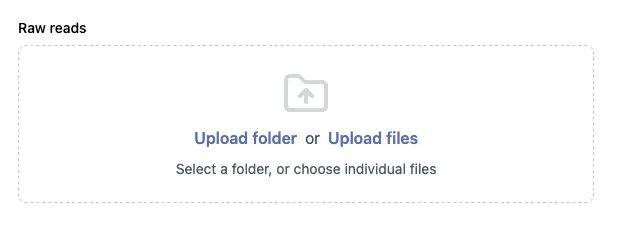
Extra files should be associated to their corresponding consensus sequence via the files.<category> metadata field, where <category> is the type of extra files you’re uploading (e.g., rawReads) . This field should contain a space-separated list of file names indicating which files belong to which sequence.
If files are uploaded and linked to their respective sequences successfully, there will be a checkmark:
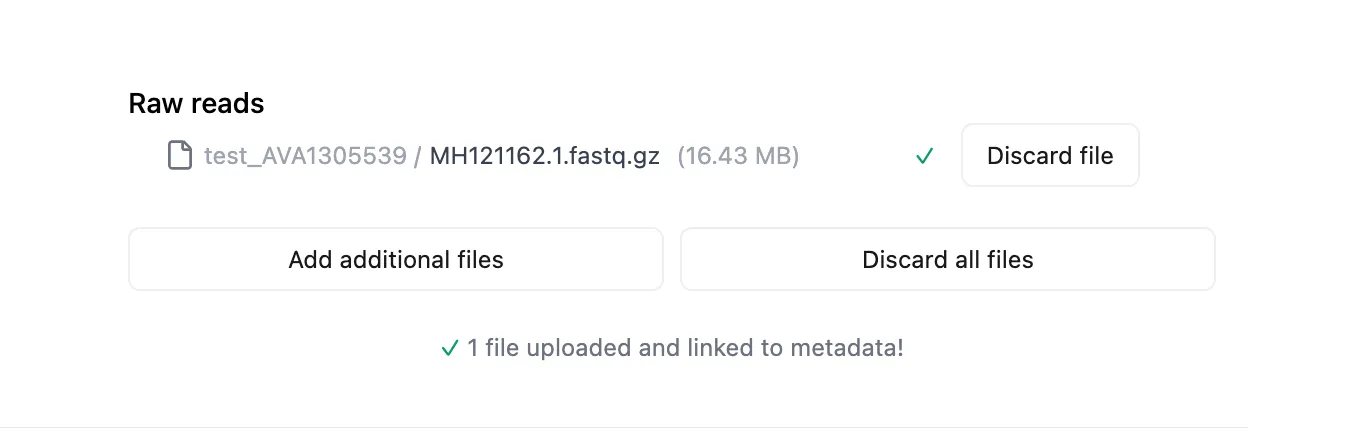
Note: since the files.<category> metadata fields refers to files in space-separated lists, file names may not contain whitespace.
To submit files via the API, it’s a two step process.
- Upload the files, and receive file IDs for them.
- Attach the file IDs during submission.
Uploading the files
Section titled “Uploading the files”Simple upload
Section titled “Simple upload”The simple (single-part) way to upload files is to call the /files/request-upload endpoint.
You need to provide a group ID, which is the group that will then own the files and give a number of how many files
you want to upload.
curl example:
curl -X POST \ '<Backend URL>/files/request-upload?groupId=2&numberFiles=3' \ -H 'accept: application/json' \ -H 'Authorization: Bearer eyJhbGciOiJSUzI1...' \The endpoint returns an array of file IDs and pre-signed URLs to use to upload the file to:
[ { "fileId": "FILE_2K7Q", "url": "https://dummyendpoint.com/dummybucket/files/FILE_2K7Q?X-Amz-Algorithm=AWS4-HMAC-SHA256&X-Amz-Credential=dummyaccesskey%2F20250330%2Fdummyregion%2Fs3%2Faws4_request&X-Amz-Date=20250330T184050Z&X-Amz-Expires=1800&X-Amz-SignedHeaders=host&X-Amz-Signature=9717e8d8c8242d0d266f816c665d78b1d842de5286fb59e37329f090e9bb0b9e" }, ...]Use the pre-signed URL to upload your file:
curl -X PUT \ -T hello-world.txt \ "<presigned URL>"Multipart upload
Section titled “Multipart upload”For large files (typically over 100 MB), you can use multipart upload which allows uploading a file in smaller chunks. This provides better reliability and performance for large file transfers.
The multipart upload process involves three steps:
- Request multipart upload URLs
- Upload the file parts
- Complete the multipart upload
Step 1: Request multipart upload URLs
Section titled “Step 1: Request multipart upload URLs”Call the /files/request-multipart-upload endpoint, specifying the number of files and the number of parts per file. curl example:
curl -X POST \ '<Backend URL>/files/request-multipart-upload?groupId=2&numberFiles=1&numberParts=3' \ -H 'accept: application/json' \ -H 'Authorization: Bearer eyJhbGciOiJSUzI1...'The endpoint returns an array with file IDs and presigned URLs for each part:
[ { "fileId": "FILE_2K7Q", "urls": [ "https://dummyendpoint.com/dummybucket/files/FILE_2K7Q?partNumber=1&X-Amz-Algorithm=...", "https://dummyendpoint.com/dummybucket/files/FILE_2K7Q?partNumber=2&X-Amz-Algorithm=...", "https://dummyendpoint.com/dummybucket/files/FILE_2K7Q?partNumber=3&X-Amz-Algorithm=..." ] }]Step 2: Upload the file parts
Section titled “Step 2: Upload the file parts”Split your file into parts and upload each part to its corresponding presigned URL. Each part should be uploaded in order using the URLs provided.
# Upload part 1curl -X PUT \ -T large-file-part1 \ "<presigned URL for part 1>"Important: Save the ETag header value from each response. You’ll need these for the next step.
The response headers will include something like:
ETag: "d41d8cd98f00b204e9800998ecf8427e"Repeat this process for each part. Note that:
- All parts except the last one should be at least 5 MB
- You don’t need to use all the provided URLs if your file requires fewer parts
Step 3: Complete the multipart upload
Section titled “Step 3: Complete the multipart upload”After uploading all parts, call the /files/complete-multipart-upload endpoint with the file ID and the ETags from each part:
curl -X POST \ '<Backend URL>/files/complete-multipart-upload' \ -H 'accept: application/json' \ -H 'Authorization: Bearer eyJhbGciOiJSUzI1...' \ -H 'Content-Type: application/json' \ -d '[ { "fileId": "FILE_2K7Q", "etags": [ "d41d8cd98f00b204e9800998ecf8427e", "098f6bcd4621d373cade4e832627b4f6", "5d41402abc4b2a76b9719d911017c592" ] } ]'The ETags must be provided in the order of the parts. Once the multipart upload is completed successfully, you can proceed to attach the file ID to your submission as described in the next section.
Attach file IDs to submission
Section titled “Attach file IDs to submission”Now, you can follow the regular steps for sequence submission, calling the /<organism>/submit endpoint.
Files are attached by adding a files.<fileCategory> column to the metadata TSV file for each file category you want to submit files for.
The fileCategory needs to be a predefined category which is organism specific, e.g. a column named files.rawReads.
The cell value for a given submission ID is a space-separated list of fileName:fileId pairs, e.g.:
files.rawReadsreads_1.fq.gz:FILE_2K7Q reads_2.fq.gz:FILE_2K7R- The
fileIdis the ID received in the previous step, which identifies the actual file. - The
fileNamecan be chosen freely within the filename restrictions, but depending on configuration it might become an identifier for the file later on. - Cells may be left empty for submission IDs that don’t have files in that category.
Filename restrictions
Section titled “Filename restrictions”By default, filenames may only contain:
- Letters
A-Zanda-z - Numbers
0-9 - Underscores (
_), hyphens (-) and periods (.)
The following restrictions always apply:
- Filenames may not be empty
- Filenames may not exceed 255 bytes when encoded as UTF-8
- Filenames may not contain the characters
< > : " / \ | ? * ; % # - Filenames may not contain ASCII control characters (character codes 0-31)
- Filenames may not contain whitespace characters
- Filenames may not be a Windows reserved device name, with or without an extension:
CON,PRN,AUX,NUL,COM1-COM9andLPT1-LPT9 - Filenames may not have trailing periods
Instance administrators can allow a wider range of characters by enabling fileSharing.disableStrictFilenameValidation,
in which case any UTF-8 characters are accepted except those listed as always restricted above.
This is not officially supported and may result in unexpected behaviour.